Themes
Choose how this screen's cabinet looks: preview every design and colour, then set the one you like.
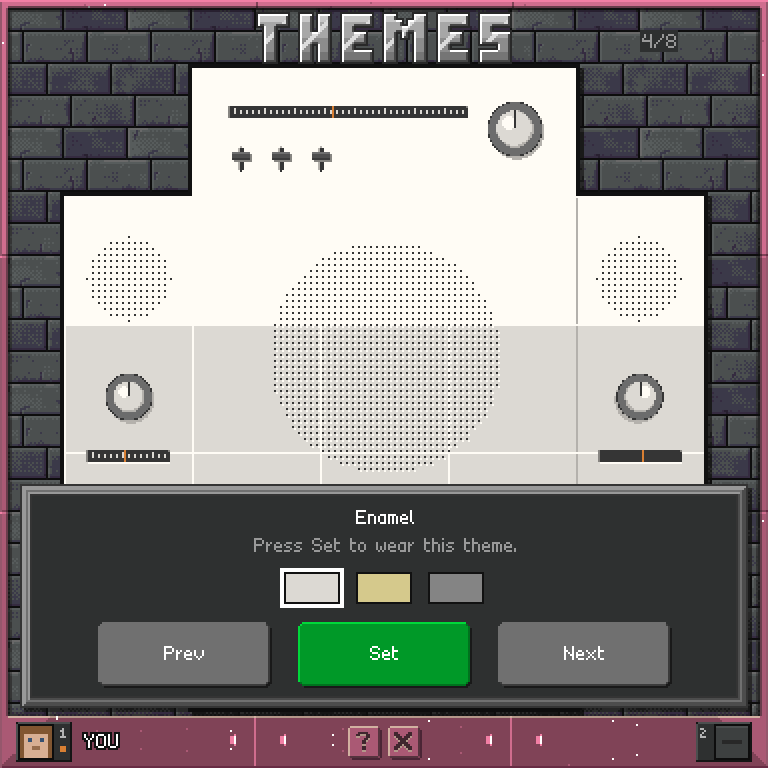
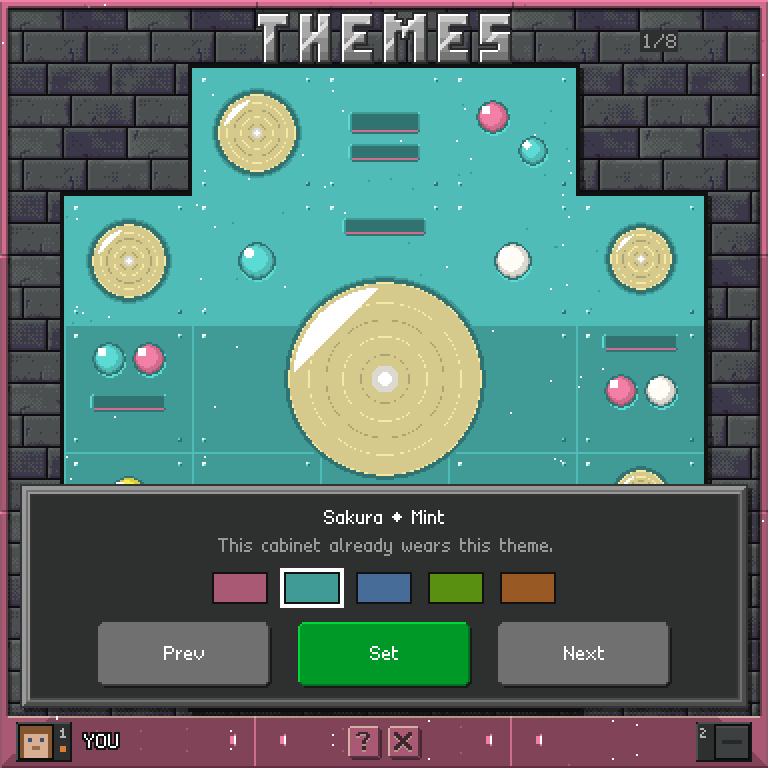
Screenshots
What it does
A cabinet wears one theme at a time. Themes come in families - one cabinet design such as hi-fi, felt or terrazzo - and each family comes in its own colours plus a few recolours, called hues. Every theme is available on every screen. What differs from screen to screen is which one it wears, and that choice is kept across a restart. It belongs to the screen, not to whoever is sitting at it.
The app shows one cabinet at a time, in the middle of the screen at half size. Under it are the name of the theme on screen - the family, then the hue after a dash - and one status line. The counter at the top right says which family of how many you are looking at.
How to use it
- Prev and Next step through the families. Each family appears in its own colours first. Stepping past either end wraps round to the other.
- The swatches above the buttons are the hues of the family on screen, each in its own colour; the ringed one is the one you are looking at. Tap a swatch to see the cabinet in that hue.
- Set puts the theme on screen onto this cabinet. The wall changes the moment you press it, and every panel keeps its place - only the picture changes.
- Looking commits nothing. You can walk the whole set and leave the cabinet exactly as it was. The status line says whether the theme on screen is the one the cabinet already wears, or what Set will do.
Who may set it
The theme is shared by everyone looking at the wall, so only the screen's owner or an operator can press Set. Anyone else is told whose computer it is, in the status line. A screen with no cabinet - one on a floor or a ceiling, or built with the cabinet turned off - has nothing to change, and says so.
Controls
Tap a swatch     see the family in that hue
Prev             the previous family
Set              wear this theme on this cabinet
Next             the next family
Wheel            step through the families, one notch per family