Settings
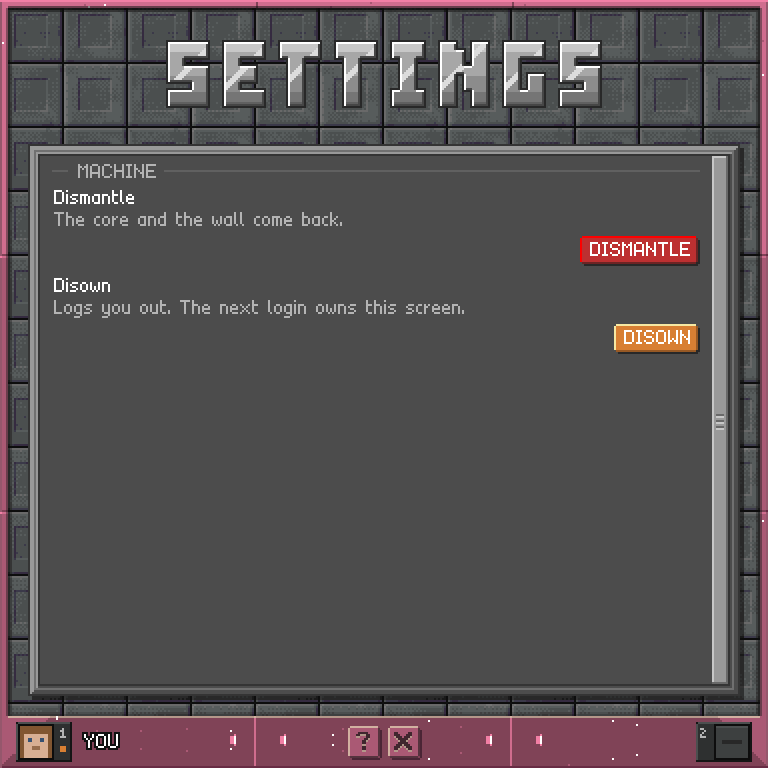
The computer's own controls: take the screen down and hand your core back, or give the screen up so the next player to log in can claim it.
Settings
Screenshots
How to use it
Settings has one section, MACHINE. Each change takes two taps.
- DISMANTLE takes the screen down and clears the wall, handing you back the computer core and the cladding around it.
- DISOWN logs you out and gives the screen up: the next player to log in claims it. Public screens have no DISOWN option.
- Operators also see KIOSK. MAKE PUBLIC logs the player out and ends ownership; anyone may sign in. MAKE PRIVATE logs the player out and leaves the computer unowned until the next login. Open work saves, and a game already in progress counts as a forfeit.
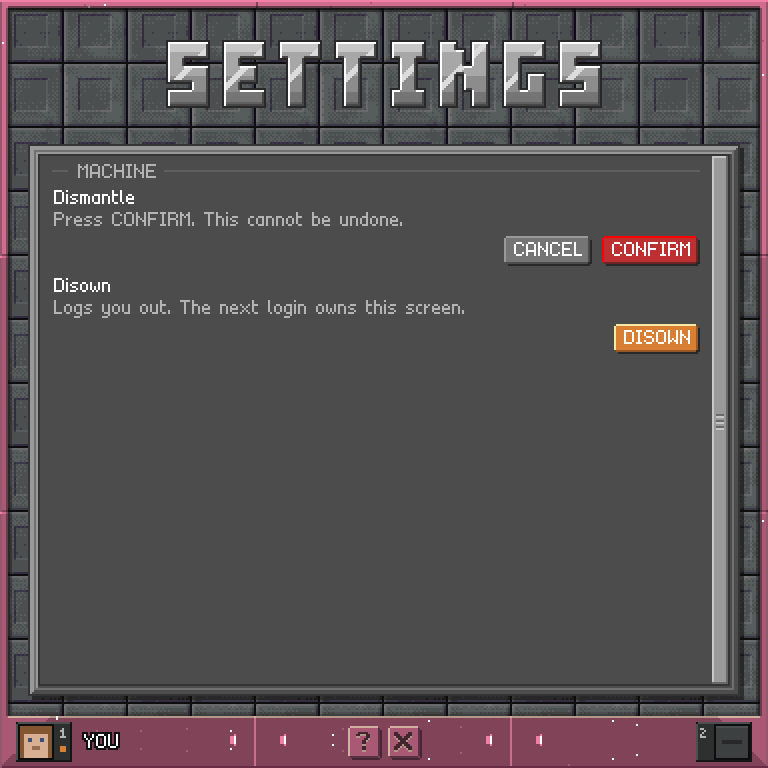
- Tap an option once and it asks you to confirm. Press CONFIRM to go ahead, or CANCEL to back out. If you do nothing, the question clears itself after about five seconds.
- While an option waits for CONFIRM, its text says what it is about to do.
- Only the screen's owner or an operator can manage a private machine. On a public machine, only an operator can change its mode or dismantle it.
On a public screen, a minute without activity dims the glass and offers LOG OUT to anyone. Acting at the screen resumes your turn before ten idle minutes, when it resets. Leaving range or disconnecting offers LOG OUT at once. Signing in at another kiosk logs you out of the previous one.
Controls
DISMANTLE    ask to take the machine apart
DISOWN       ask to log out and give the screen up
MAKE PUBLIC  ask to make a kiosk (operators only)
MAKE PRIVATE ask to end public mode (operators only)
CONFIRM      go ahead - the second tap
CANCEL       back out