How to play
- Being in a room is the whole idea. You see a room's messages, hear about new ones and can post in it only while you are a member.
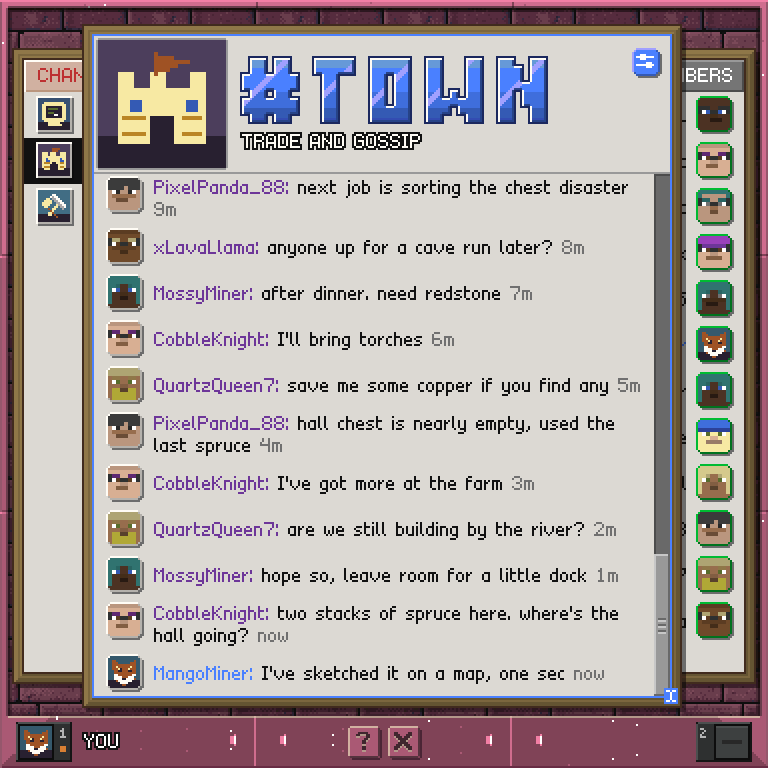
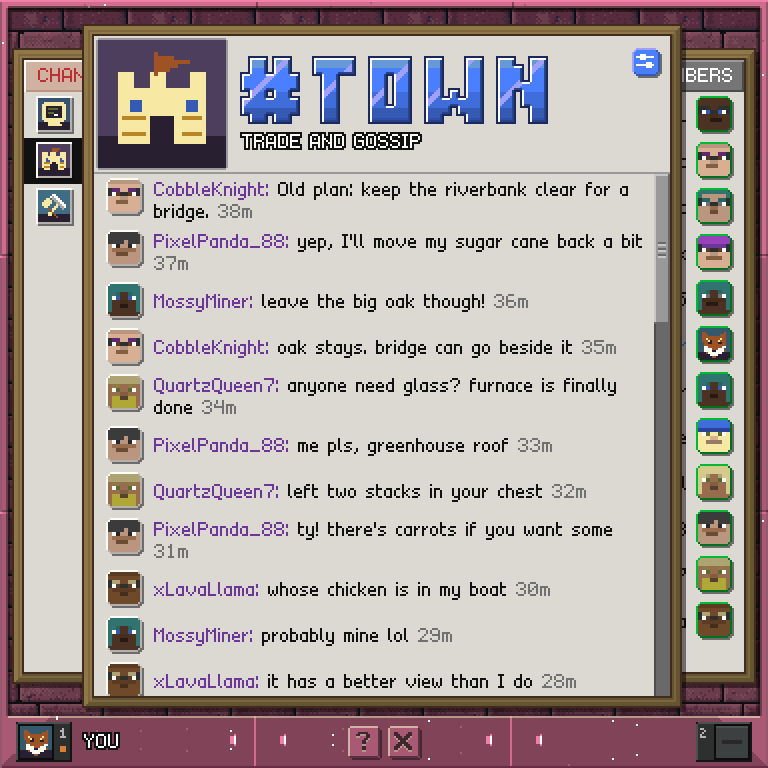
- The window in the middle is the room you are in. A tray of your rooms is tucked under its left edge, and a tray of the room's members under its right. Point at a tray and it slides to the front until you move away.
- Your rooms tray has a row for each room, with
#server at the top. Tap a row to switch to that room. A room with messages you have not read is tinted and shows how many. #server is the server's own public chat, shown as a room. Everyone is already in it, and it is the only room that comes with the server: every other room is made by players, from CHANNELS. It has no message field: say something in normal Minecraft chat and your line appears in the room.- In any other room, point at the messages and type a line in Minecraft chat. The line is posted under your name. Any member of the room can do this, not only the player standing at the screen.
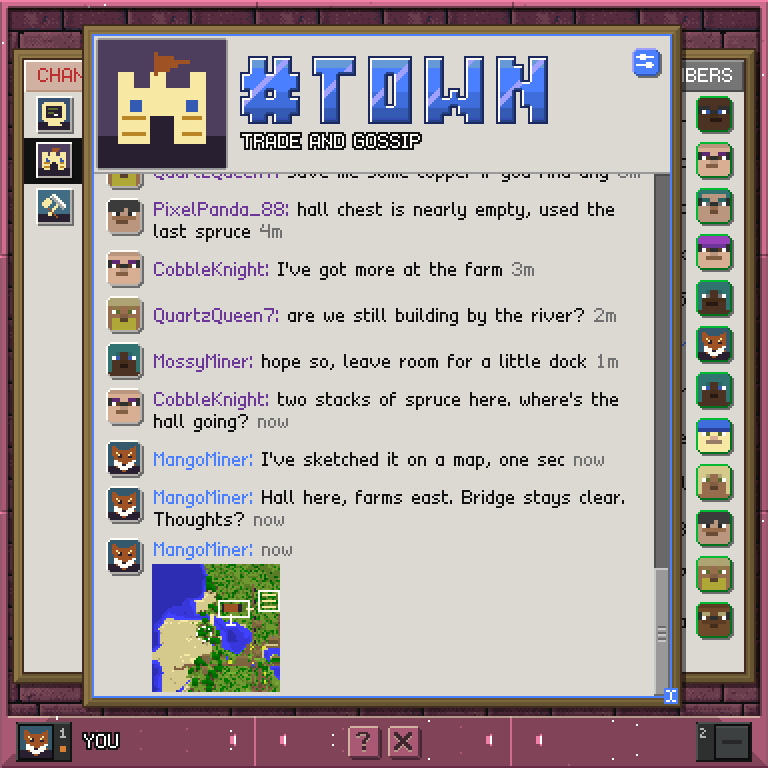
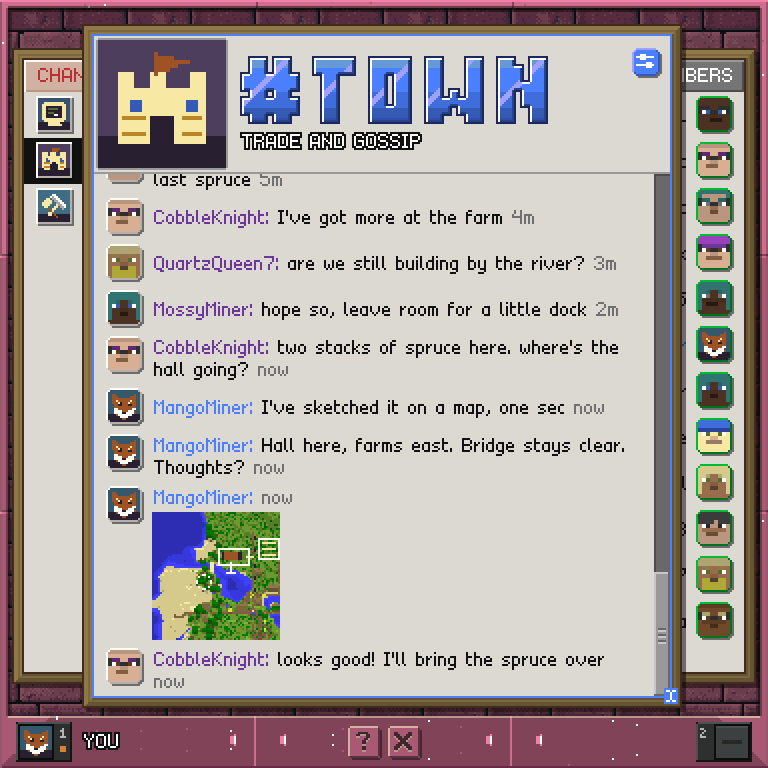
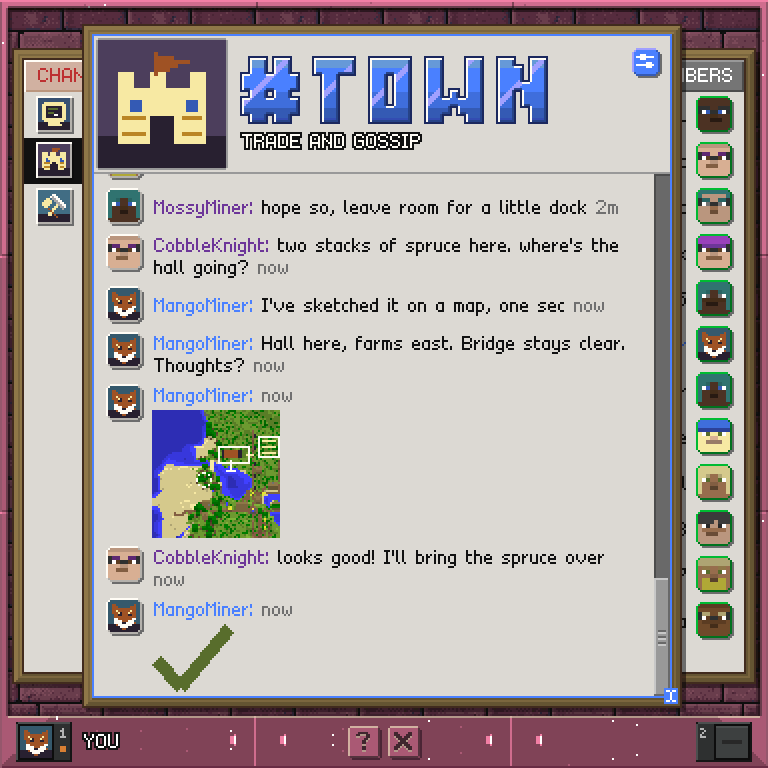
- To post a picture, hold a filled map in your off hand. A picker opens over the window: left-click posts the picture, and right-click then press again crops it first. Your last picture is replaced, not added to, if nobody has posted since.
- CHANNELS opens the Channels app: every room you can see, to open, join or knock on, or to start a new room of your own. A room you open there comes back here. A private room is not listed - a member has to invite you.
- MEMBERS opens the room's member list. Online members have a green ring on their face. KICK proposes removing a member, and INVITE sends a player an offer to join.
- The sliders button at the top of the window opens the room's details page: its picture, topic, settings, knocks on the door and open proposals. An amber dot on it means something there is waiting.
- To give a room a picture, draw a map in paint, hold it in your main hand and right-click the picture on the details page. Left-click clears it.
- Every member sees what you post. Members who are online also get a short line in Minecraft chat, like
[#town] <Sara> anyone got spare rails, unless they are already looking at that room on a screen. - You can post from anywhere in Minecraft chat with
/msg #trade buying shovels, as long as you are a member of #trade. - Nobody owns a room. Kicking a member, making a room public or private, changing who can join, showing or hiding past messages and changing how long history is kept are proposed by one member and approved by another. A member alone in the room can approve their own. Letting a knocker in (ADMIT) and changing the topic take one member only.
Controls
Tap a room            switch to that room
Point at the text     type a line in Minecraft chat to post it
CHANNELS              find, join or start rooms
MEMBERS               see who is in the room; kick or invite
Sliders button        the room's details page, settings and proposals
LEAVE (details page)  leave the room; a private room needs a new invite
Scroll the hotbar     scroll the messages, or the tray you are pointing at
? / X                 help / leave the app