Paint
A drawing studio on your wall: paint pictures up to eight maps across, with nine brush presets, a full palette, undo and a minimap to steer by.
Paint
Screenshots
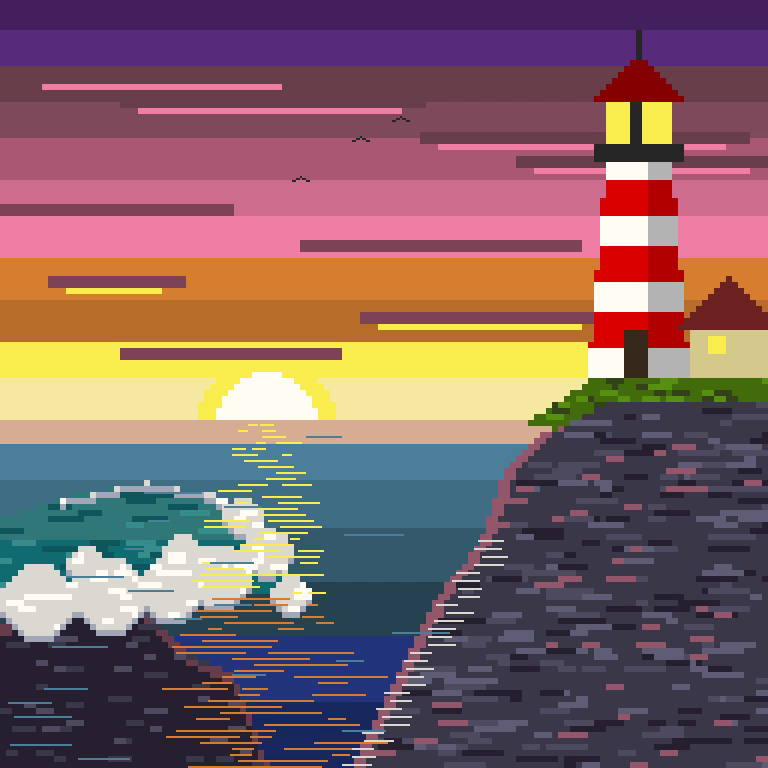
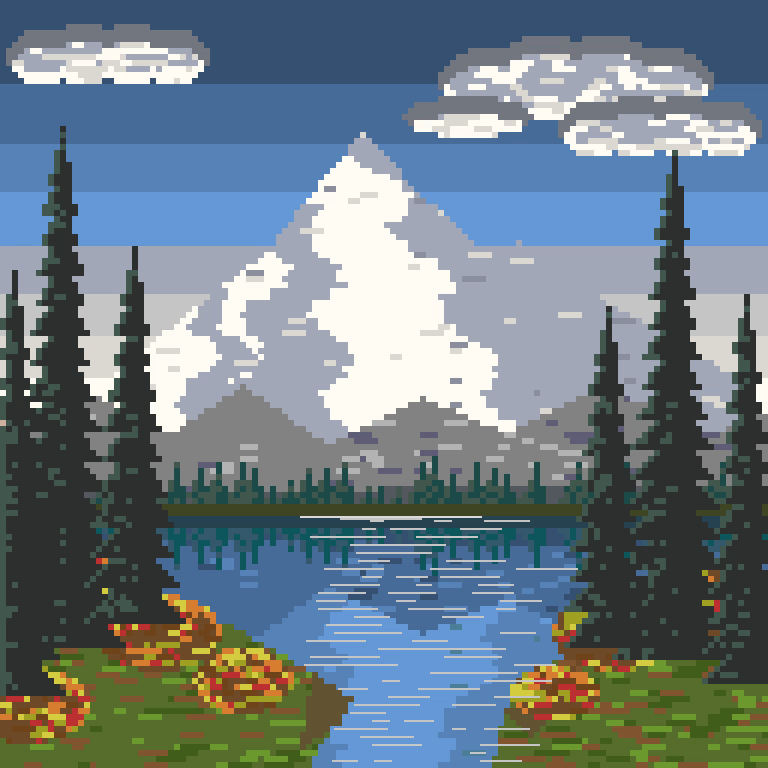
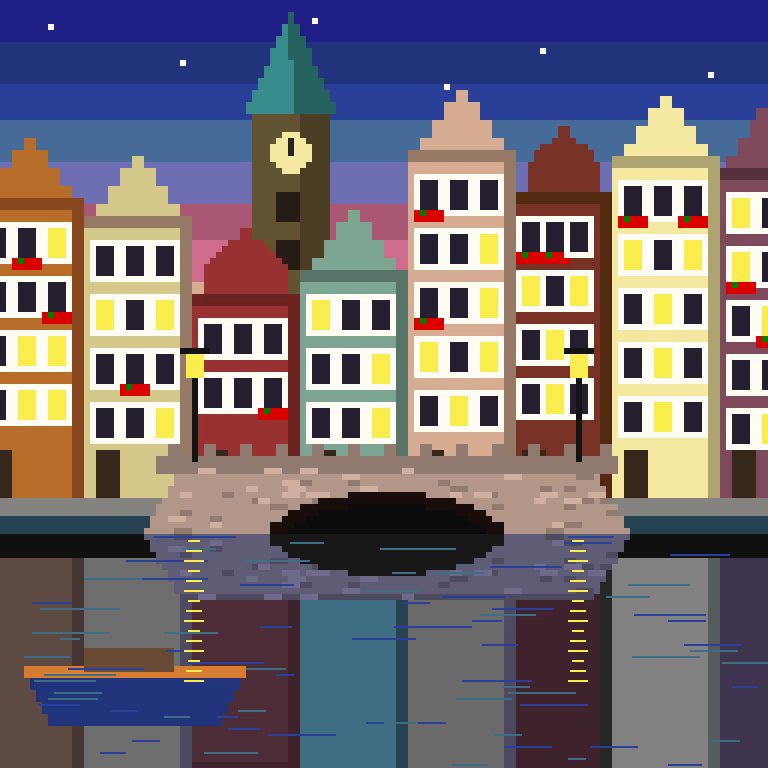
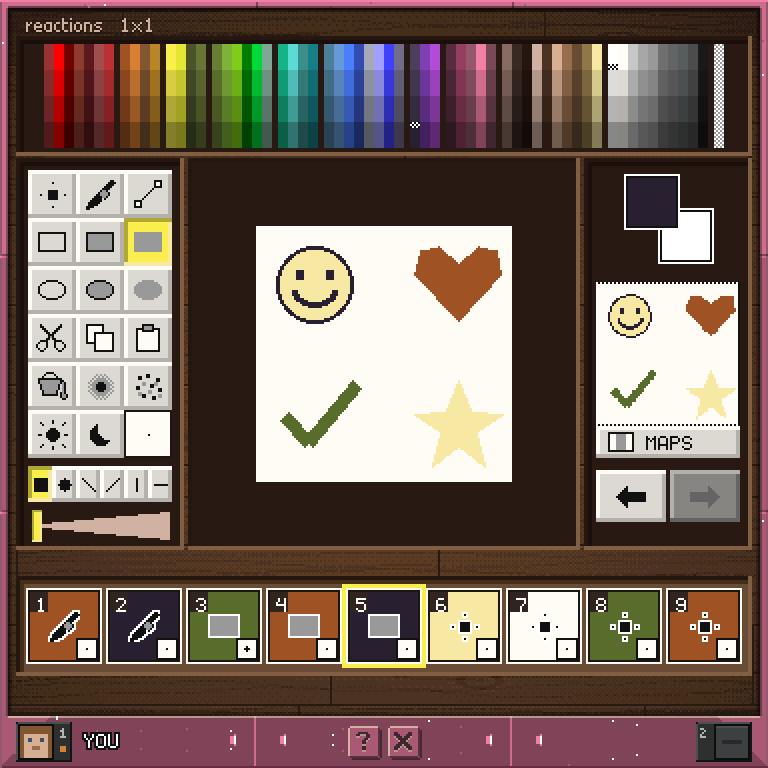
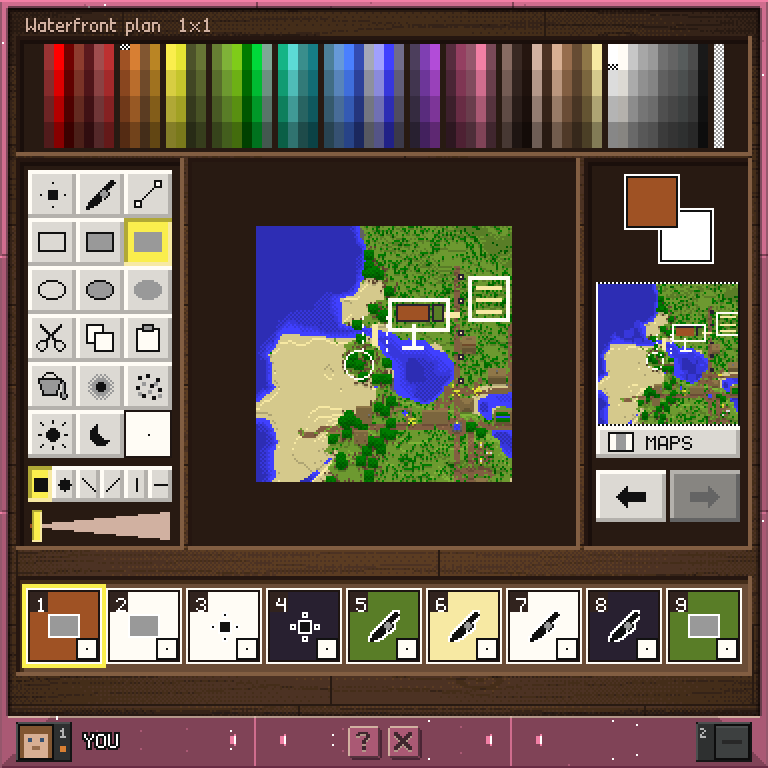
It is a tool, not a game - nothing scores and nothing ends.
Your projects
- The studio shows your projects on easels, the most recently painted first. Click a canvas (or its palette button) to open it, the pencil to rename it and the bin to delete it. The empty easel starts a new one.
- A new canvas takes a name you type in chat and starts blank, at a size you pick on the wall of item frames from 1x1 up to 8x8 maps, or from a template picture when the server has some. Operators can also import a PNG. The size cannot change once it is made.
- Each project keeps its own pixels and saves itself as you paint. World maps are touched only when you ask.
- Build the display from the floor up, so the part of the picture you are working on sits at your eye line.
Painting
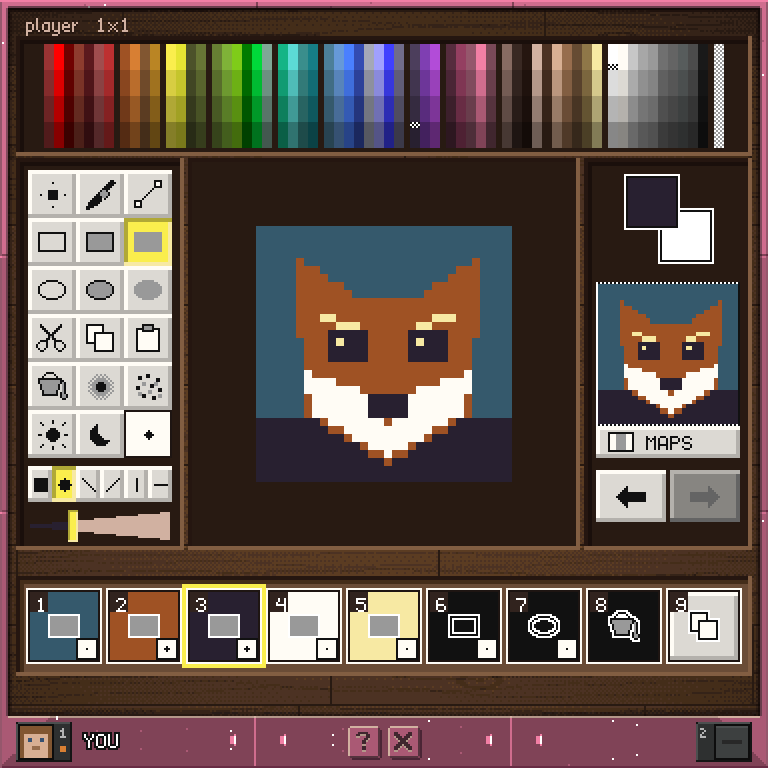
- The window shows a map and a half of the canvas at a time. The minimap shows the whole project: click it to move the window there. A gold ring shows exactly where the window will land.
- Right click paints; left click is the eyedropper, which picks the colour under the cursor into the preset's foreground.
- The nine hotbar slots are presets. Each remembers a tool, a nib, a foreground colour and a background colour, and the slot you hold is the one you paint with. Click a slot on the strip to switch, or use your real hotbar - the two stay together.
- The panels edit the active preset: the palette across the top, a button for every tool, and the nib beneath them - six shapes over a slider from thin to thick. The square beside the last tool shows the nib at its true size.
- The tools are point, brush, line, box, ellipse, cut, copy, paste, fill, blur, jumble, brighten and darken. Box and ellipse come outlined, filled or solid.
- Line, box, ellipse, cut and copy take two clicks: the first pins a corner, the second finishes it. Paste and fill act once per click.
- Hold shift and scroll to make the foreground colour lighter or darker. To switch presets with a number key, let go of shift first.
- Undo and redo sit under the minimap. Click to step once; hold right click to rewind or replay. Your history lasts until the server restarts.
Text
Look at the picture and type in chat to put words on it, whatever tool you are holding. The line lands in a box centred where you look.
- While a box is live, the bar under the picture becomes its options. Keys 1 and 2 move the text inside the box, 3 changes its size, 4 changes its style, 5 throws it away and 6 finishes. Click a plate to set the same thing.
- Right click a square on the box's edge to resize it, or right click inside the box to move it; the box follows your look, and a right click again puts it down. Left click is still the eyedropper.
- 6, or the tick, paints the box into the picture. 5, or the cross, throws it away. Changing tool or preset, opening MAPS or leaving the editor finishes it first.
Maps
MAPS opens the project's maps, each cell named like a chess square (A1, B2).
- LOAD copies the filled map in your main hand into the cell you click.
- SAVE writes the cell you click onto the map in your main hand, or turns an empty map into a filled one. A saved map is locked, so the world can never repaint it.
- The line under your hand says what a click will do, and the tab you chose stays, so a mural of six cells is six clicks.
Controls
Right click the canvas      paint with the preset's colours
Left click the canvas       eyedropper: pick a colour
Right click a swatch        set the preset's foreground
Left click a swatch         set the preset's background
Left click the live pair    swap the two colours
Click a tool button         use that tool
Click a shape               set the nib's shape
Click the slider            set the nib's size
Click a slot                select that preset
Shift + scroll              lighten or darken the foreground
Click the minimap           move the window
Click undo or redo          step back or forward; hold to keep going
Click MAPS                  load maps into cells, or save cells onto maps
Exit                        back to the studio (or the editor, from MAPS)